
How to Setup Nintendo Switch 2
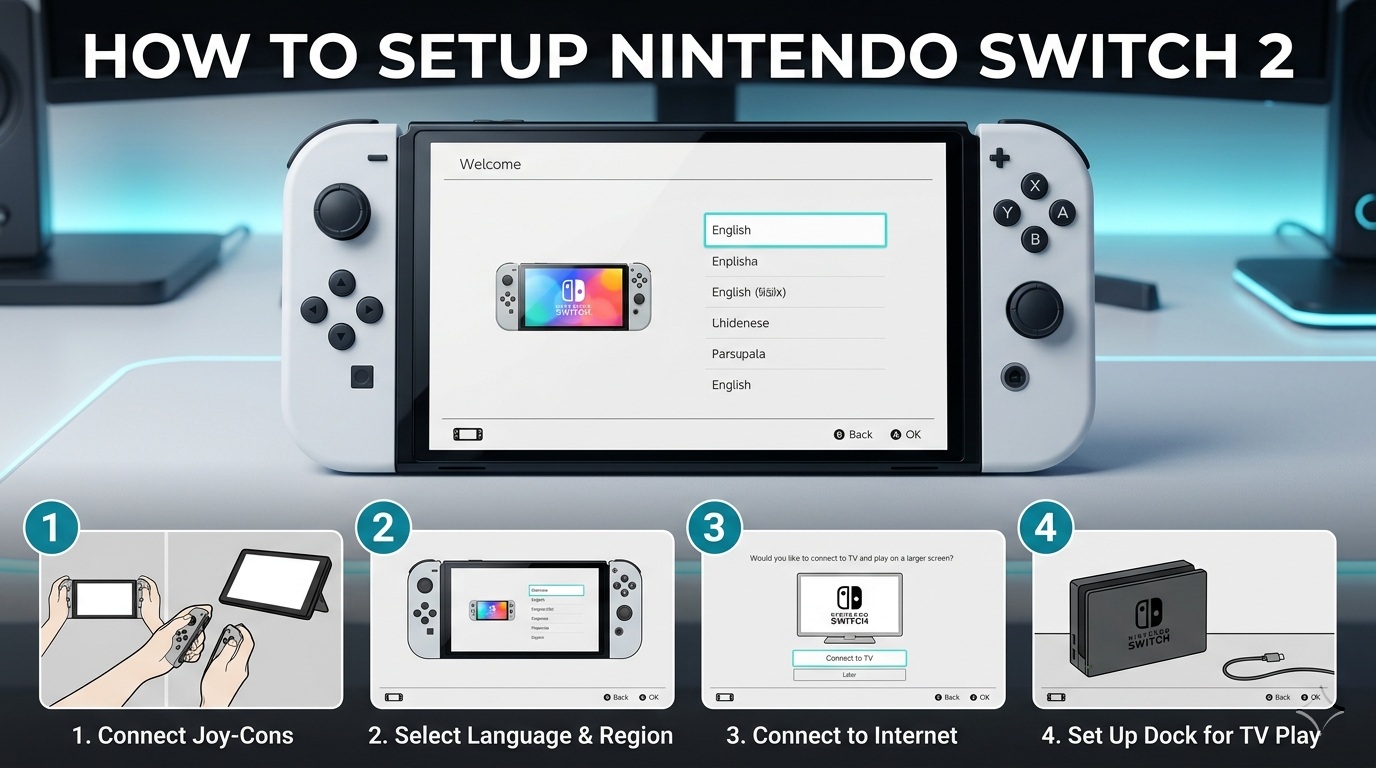
The Nintendo Switch 2 was released on June 5, 2025 and became the fastest-selling Nintendo console ever with over 3.5 million units sold in its first four days. It is powered by an Nvidia Tegra T239 chip with support for DLSS, ray tracing, 4K output when docked and up to 120fps in handheld and tabletop mode. In this guide we will walk you through the complete setup process including the first-time configuration, Nintendo Account, GameChat, GameShare, parental controls, microSD Express storage and data transfer from your original Switch.
What is Inside the Nintendo Switch 2 Box
Before you start setup make sure you have all of the following items from the box:
- Nintendo Switch 2 console – 7.9-inch LCD screen with 1080p resolution and 120Hz refresh rate
- Joy-Con 2 controllers (left and right) – Magnetic attachment, larger buttons, new C Button and rear GR/GL buttons
- Nintendo Switch 2 dock – Supports 4K output on compatible TVs, includes internal cooling fan
- HDMI cable – For connecting the dock to your TV
- AC adapter and USB-C cable – For charging the console and powering the dock
- Joy-Con 2 grip – For comfortable handheld-style play with detached Joy-Con 2 controllers
- Wrist straps – For attaching to Joy-Con 2 during motion-based play
Note: The Nintendo Switch 2 does not include a microSD Express card. The console has 256GB of internal storage built in. If you need more storage you will need to purchase a microSD Express card separately. The Switch 2 is not compatible with the original microSD cards used in the first-generation Switch.
Nintendo Switch 2 Technical Specifications
| Specification | Details |
|---|---|
| Processor | Nvidia Tegra T239 with DLSS and ray tracing support |
| Screen | 7.9-inch LCD, 1080p resolution, HDR, up to 120fps, VRR |
| TV Output | Up to 4K at 60fps (TV and game must support 4K). 1080p at 120fps also supported. |
| Internal Storage | 256GB (significantly more than the original Switch’s 32GB) |
| Expandable Storage | microSD Express cards only, up to 2TB. Original microSD cards not compatible. |
| Battery Life | Estimated 2 to 6.5 hours depending on game and usage |
| USB-C Ports | Two ports — one on the bottom and one on the top for charging in tabletop mode |
| Controllers | Joy-Con 2 (magnetic), Nintendo Switch 2 Pro Controller, GameCube controller (via adapter) |
| Audio | Built-in microphone with noise cancellation, 3D sound support via headphones |
| Mouse Support | Joy-Con 2 has built-in mouse sensor. Third-party USB mice also supported. |
How to Set Up Nintendo Switch 2 for the First Time
Follow these steps to complete the initial hardware setup:
- Connect the USB-C cable to the AC adapter and plug it into a wall socket.
- Insert the USB-C cable into the USB-C connector on the bottom of the console to charge it before first use.
- Attach both Joy-Con 2 controllers to the left and right sides of the console. They attach magnetically and click into place. Press the release button on each Joy-Con 2 to detach them.
- Press the power button on the top left corner of the console to turn it on.
- Follow the on-screen prompts to begin first-time setup. You can enable Text to Speech on the language selection screen if needed.
- Select your language and region. This also affects the Nintendo eShop region and currency.
- Read and accept the End User License Agreement and important safety information when prompted.
- Set up your internet connection by selecting your WiFi network and entering your password. The touchscreen makes this easy. A Day One system update will begin downloading automatically in the background.
- Set your time zone for the console clock.
- Sign in to or create your Nintendo Account (see section below). This is required for online play, the eShop and GameChat.
- Explore the Welcome Center — a built-in app on the Switch 2 that guides new users through the system’s features, play modes and controls.
Tip: If you purchased a Nintendo Switch 2 + Mario Kart World Bundle between March 10, 2026 and April 14, 2026 from a participating retailer you may be eligible for a free 12 Month Nintendo Switch Online + Expansion Pack membership. Register before May 15, 2026 to claim it.
How to Set Up a Nintendo Account
A Nintendo Account is required for online features, GameChat, GameShare, the Nintendo eShop and Nintendo Switch Online. Follow these steps to sign in or create one:
- During setup when prompted select Sign In and Link if you already have a Nintendo Account, or Create Account if you are new.
- To create a new account you will need a valid email address, a date of birth and a password. Children under 13 require parental consent to create an account.
- A verification email will be sent to your email address. Open it and click the verification link to activate your account.
- Once your account is verified return to the console and sign in. Your Nintendo Account will now be linked to the console.
- You can link up to 8 user profiles on one Nintendo Switch 2 console. Each profile can have its own Nintendo Account for separate save data and purchases.
Note: You must register a mobile phone number to your Nintendo Account before you can use GameChat. This is a security requirement from Nintendo to help prevent abuse and harassment.
How to Set Up TV Mode with the Dock
To play Nintendo Switch 2 on your TV using the dock follow these steps:
- Connect the HDMI cable from the dock to an HDMI port on your TV.
- Connect the AC adapter to the dock using the USB-C port on the back of the dock.
- Open the dock’s side panel and insert the Nintendo Switch 2 console into the dock with the screen facing outward.
- Switch your TV input to the correct HDMI channel.
- The console will automatically switch to TV mode and output to your TV.
- For 4K output your TV must support 4K resolution and HDCP 2.3. The game you are playing must also support 4K. Note that 4K output is capped at 60fps.
Tip: The Nintendo Switch 2 dock has a built-in internal fan to cool the console and maintain stable performance during TV mode sessions.
How to Configure GameChat
GameChat is a brand-new feature exclusive to Nintendo Switch 2 that lets up to 12 people chat via voice, share their screens in real time and use video chat with an optional USB-C camera. Here is how to set it up:
- Make sure your Nintendo Account has a registered mobile phone number. This is required to complete GameChat setup. Text message verification will be sent to this number.
- Press the C Button on the right Joy-Con 2 controller or press the HOME button and navigate to GameChat from the HOME Menu to open the C Menu.
- Follow the on-screen prompts to complete GameChat initial setup including phone number verification.
- Once setup is complete go to your Friend List and approve specific friends you want to allow GameChat sessions with. You can only start or receive sessions with friends you have mutually approved.
- To start a GameChat room select Create Room and invite approved friends from your friend list.
- The Nintendo Switch 2 built-in microphone will activate automatically. It features noise cancellation that filters out game sounds and adjusts volume based on your distance from the console whether you are in TV mode, tabletop or handheld mode.
- To share your screen with friends during a session select the screen share option inside the GameChat room. You can share even if everyone in the chat is playing a different game.
- For video chat connect a compatible USB-C camera accessory to the top USB-C port on the console. Up to four people can share video simultaneously in a single GameChat room.
Important: GameChat required a Nintendo Switch Online membership starting April 1, 2026. If your membership has lapsed you will need to renew it to continue using GameChat. Voice and screen sharing are both covered by the membership requirement.
Safety note: For players under 16 years old GameChat is restricted by default. A parent or guardian must enable it through the Nintendo Switch Parental Controls app before the child can use any GameChat features. Children under 16 can only chat with friends approved by their parent or guardian.
How to Configure GameShare
GameShare lets one Nintendo Switch 2 host share a compatible game with up to four other players in a GameChat room even if the other players do not own the game. Here is how to use it:
- Make sure you and your friends are in an active GameChat room together.
- Launch the compatible game on your console (the host console must own the game).
- Navigate to the in-game GameShare menu. The exact location varies by game.
- Select the friends in your GameChat room you want to invite to join via GameShare.
- Friends who accept the invitation can play the game without owning a copy for as long as the GameChat session is active. The game is no longer playable once the session ends.
Note: GameShare is only available for select compatible titles. Not all Switch 2 games support it. Multiple GameShare sessions can run simultaneously with different games and different players inside the same GameChat room. A Nintendo Switch 2 is required both to host and join a GameShare session over the internet. Original Nintendo Switch consoles can only join a GameShare session via local wireless, not online.
How to Set Up Nintendo Switch Parental Controls
The Nintendo Switch Parental Controls app works with Nintendo Switch 2 and gives parents full control over what their child can do on the console. Here is how to set it up:
- Download the Nintendo Switch Parental Controls app on your smartphone from the App Store (iPhone) or Google Play (Android).
- Open the app and follow the on-screen instructions to link it to your child’s Nintendo Switch 2 console using a pairing code displayed on the console.
- Once linked you can configure the following settings from the app:
- Play time limits – Set daily or weekly time limits and bedtime alarms
- Game age ratings – Restrict games above a certain age rating (e.g. block games rated 18+)
- Online play restrictions – Limit or block online multiplayer
- GameChat controls – See who your child is chatting with, limit video chat access and view call history
- eShop restrictions – Block or limit purchases on the Nintendo eShop
- Software restrictions – Restrict which software can be launched
- For children under 16 you must also approve GameChat access and approve specific friends your child can chat with through the parental controls app.
Tip: GameChat text message verification for children under 16 uses the phone number registered to the parent or guardian’s Nintendo Account, not the child’s account.
How to Add a microSD Express Card
The Nintendo Switch 2 comes with 256GB of internal storage but you can expand this with a microSD Express card. Follow these steps:
- Purchase a microSD Express card compatible with Nintendo Switch 2. These cards support up to 2TB of storage. Look for cards labelled as Nintendo Switch 2 compatible at retailers.
- Power off the Nintendo Switch 2 console completely by holding the power button and selecting Power Options → Turn Off.
- Open the microSD card slot cover on the bottom of the console next to the USB-C port.
- Insert the microSD Express card with the label facing outward until it clicks into place.
- Close the card slot cover and turn the console back on.
- The console will automatically detect the new card. You may be prompted to format it. Select Format to prepare it for use.
- Once formatted new game downloads will use the microSD Express card automatically. You can also move existing games from internal storage to the card via System Settings → Data Management.
Important: The Nintendo Switch 2 only accepts microSD Express cards. The original microSD and microSDXC cards used in the first-generation Switch are not compatible with the Switch 2. Do not attempt to insert them as they use a different connector standard and data transfer speed.
How to Transfer Data from Nintendo Switch to Switch 2
If you are upgrading from an original Nintendo Switch you can transfer your digital games, save data and settings to the Switch 2 using the System Transfer feature. Here is how:
- Make sure both consoles are fully charged and connected to the same WiFi network.
- On the Nintendo Switch 2 go to System Settings → System → System Transfer and select Receive from Nintendo Switch.
- On the original Nintendo Switch go to System Settings → System → System Transfer and select Send to Nintendo Switch 2.
- Follow the on-screen instructions on both consoles. A transfer code will be displayed on the Switch 2. Enter it on the original Switch to begin the transfer.
- The transfer will move your Nintendo Account link, save data, user profiles and downloaded software. The time required depends on how much data you have.
- Once complete your original Switch will be deregistered as the primary console and the Switch 2 will become your new primary console.
Note: Physical game cards do not need to be transferred. Simply insert them into the Nintendo Switch 2 and they will work. Some Nintendo Switch games may not be fully compatible with the Switch 2 hardware changes or the new Joy-Con 2 controllers, particularly games that use IR functionality.
Nintendo Switch 2 Backward Compatibility
Nintendo Switch 2 is backward compatible with most original Nintendo Switch games both physically and digitally. Here is what you need to know:
- Most Switch games work on Switch 2 – Both physical game cards and digital downloads from your Nintendo Account are playable.
- Nintendo Switch 2 Edition upgrades – Some Switch games have free or paid upgrade packs called Nintendo Switch 2 Edition. These add 4K resolution, higher frame rates, enhanced visuals and Switch 2 exclusive features like GameChat integration and Joy-Con 2 mouse controls.
- Game Key Cards – Some Switch 2 physical releases use Game Key Cards that contain no game data on the card itself and require a download from the eShop. Check the packaging before buying if you prefer physical game data.
- GameCube games via Nintendo Switch Online – GameCube games in the Nintendo Classics library are exclusive to Switch 2 and not available on the original Switch. This includes titles like The Legend of Zelda: The Wind Waker, Soulcalibur II and F-Zero GX.
- IR functionality – Some original Switch games that relied on Joy-Con IR functionality may not be fully compatible with Joy-Con 2. These can often still be played using original Joy-Con controllers wirelessly.
How to Set Up Nintendo Switch Online
Nintendo Switch Online is required for online multiplayer in most games and for GameChat. Follow these steps to set it up:
- Go to System Settings → Nintendo Switch Online on the console or visit nintendo.com/switch/online on a web browser.
- Select your preferred plan:
- Individual Membership – For one Nintendo Account
- Family Group Membership – For up to 8 Nintendo Accounts, ideal for families
- Expansion Pack – Adds access to Nintendo 64, Sega Genesis, Game Boy, GBA and GameCube games in the Nintendo Classics library
- Complete payment using a credit card, PayPal or Nintendo eShop balance.
- Once active your membership covers online play, save data cloud backup and access to the Nintendo Classics game library.
Troubleshooting Nintendo Switch 2 Setup Issues
Here are the most common setup issues and how to fix them:
- Console will not turn on: Charge the console for at least 30 minutes using the included AC adapter before attempting to power on. The battery may be fully depleted if this is a new device.
- Joy-Con 2 not attaching properly: The Joy-Con 2 uses magnetic connectors. Make sure the connector rail is clean and free of debris. Slide the Joy-Con 2 from the top down until it clicks.
- No picture when docked: Check the HDMI cable is firmly connected to both the dock and the TV. Make sure the TV is on the correct HDMI input. Try a different HDMI cable if the problem persists.
- No 4K output from dock: Make sure your TV supports 4K resolution and HDCP 2.3. Not all games support 4K output — check the game’s specifications. 4K output is capped at 60fps maximum.
- System update will not download: Check your internet connection. Make sure the console has enough free internal storage for the update. Connect to a 5GHz WiFi network for faster download speeds.
- microSD Express card not detected: Make sure you are using a microSD Express card and not a standard microSD card. Power off the console completely before inserting the card. Reinsert the card firmly until it clicks.
- Cannot set up GameChat: Make sure your Nintendo Account has a registered phone number. GameChat also requires a Nintendo Switch Online membership as of April 1, 2026. For users under 16 parental approval is required first.
- System Transfer stuck or failed: Make sure both consoles are connected to the same WiFi network and both are fully charged. Disable any VPN on your router during the transfer. If it fails restart both consoles and try again.
Conclusion
The Nintendo Switch 2 is a significant upgrade over the original Switch with a larger 7.9-inch 120Hz screen, Nvidia Tegra T239 processor, 256GB of internal storage, 4K docked output, magnetic Joy-Con 2 controllers with built-in mouse sensors, and the new GameChat and GameShare social features. The setup process is straightforward and takes around 20 to 30 minutes including the day one system update and Nintendo Account setup.
If you are transferring from an original Switch the System Transfer feature makes moving your games, save data and profiles simple. Just make sure you pick up a microSD Express card if you plan on downloading a lot of games as even 256GB fills up quickly.
If you have any questions or run into any issues during setup feel free to leave a comment below.