
How to Configure WordPress Security: Complete Setup Guide
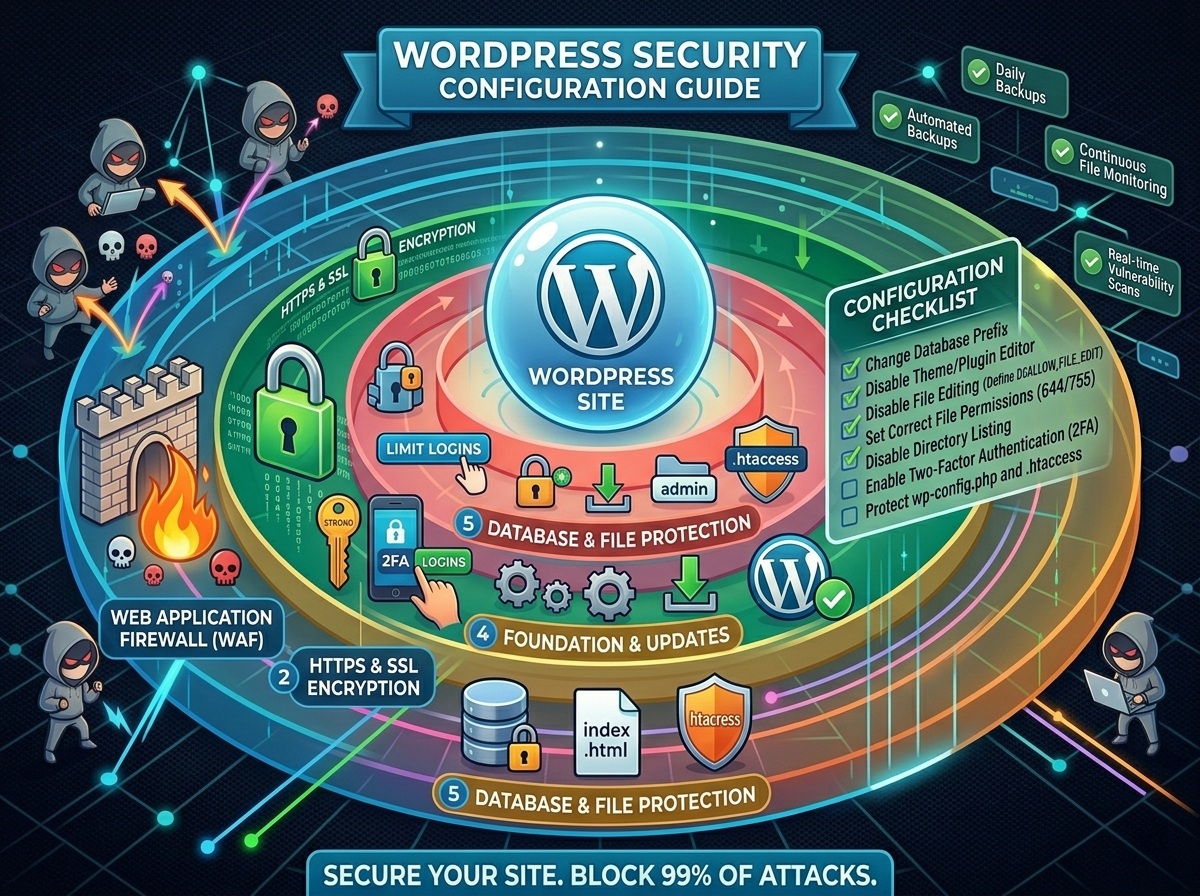
Your WordPress site is constantly under attack. Hackers scan websites for vulnerabilities 24/7, looking for ways to steal data, inject malware, or take control of your site. A properly configured WordPress security system blocks 99% of attacks before they happen. Most WordPress owners ignore security configuration until after they get hacked. Don’t be one of them.
Why WordPress Security Configuration Matters
WordPress powers 43% of all websites on the internet. This popularity makes it a target. Hackers develop automated tools that scan millions of WordPress sites looking for vulnerable versions, weak passwords, or unpatched plugins. A single misconfiguration can compromise your entire site, destroy customer trust, and cost thousands in recovery fees.
The good news: WordPress security configuration is not complicated. Most critical vulnerabilities can be prevented through proper setup. You don’t need to be a security expert. You just need to follow best practices and configure the right settings. This guide covers everything essential.
Foundation: Keep Everything Updated
Update WordPress, themes, and plugins immediately. Developers release updates for security reasons. Each update patches known vulnerabilities that hackers actively exploit. Running an outdated WordPress version is like leaving your front door unlocked.
Enable automatic updates in WordPress. Navigate to Settings > General > Update Settings and enable automatic updates for WordPress core, plugins, and themes. Automatic updates ensure you never miss a critical security patch. Modern WordPress versions are stable, and automatic updates rarely cause problems.
Review plugin security regularly. Remove plugins you no longer use. Unused plugins are security liabilities because developers stop patching them once they’re abandoned. Every plugin increases your attack surface. Only install plugins from reputable developers with active maintenance and good security track records.
Authentication: Secure Login Configuration
Your login page is the front door. This is where hackers try to break in first. Configure strong authentication to make unauthorized access nearly impossible.
Change the default username from “admin” to something else. The username “admin” is the first thing hackers try. During WordPress installation, create a different admin username. If you have an existing WordPress site with admin username, create a new user with a different name, make it administrator, then delete the old admin user.
Require strong passwords for all user accounts. WordPress requires passwords by default, but make sure users create truly strong passwords with uppercase, lowercase, numbers, and special characters. Consider using a password manager plugin that enforces password strength.
Implement two-factor authentication (2FA). Two-factor authentication requires an additional verification step beyond just password entry. Users must confirm login through email, phone, or an authenticator app. This makes account takeover nearly impossible even if a password is compromised. Use a plugin like Wordfence to implement 2FA.
Limit login attempts. Hackers use automated tools to try thousands of password combinations. Limit login attempts to five failures in 15 minutes, then lock the account temporarily. This stops brute force attacks. Configure this in your security plugin settings.
Database Security Configuration
Your WordPress database contains all your site data: posts, pages, user information, and settings. Database security is critical. Configure these protections:
Database prefix: Change the default database table prefix from “wp_” to something else. This prevents automated SQL injection attacks. If you have an existing site, this requires database modification. For new sites, specify a custom prefix during installation.
Database user permissions: The WordPress database user needs only specific permissions: SELECT, INSERT, UPDATE, and DELETE. The user should NOT have CREATE, DROP, or ALTER permissions. This limits damage if the database user account is compromised.
Regular backups: Back up your entire WordPress installation daily. Backups should include all files and the complete database. If you get hacked, a recent backup allows you to restore your site quickly. Store backups off-site, not on the same server.
File and Directory Protection
WordPress files contain sensitive information. Hackers try to access these files directly to extract information or upload malware.
Prevent directory listing: Create an empty index.html file in each directory that should not be browsable. This prevents hackers from seeing directory contents. For the wp-content and wp-includes directories, add an index.html file to prevent listing.
Protect configuration file: The wp-config.php file contains your database credentials and security keys. Move this file outside the web root if your hosting allows it. Or restrict access using an .htaccess file so the file can’t be read through the browser.
Disable file editing: Add this line to wp-config.php: define(‘DISALLOW_FILE_EDIT’, true);. This prevents attackers from editing WordPress files through the admin panel if they gain access.
Set correct file permissions: WordPress files should have permission 644. WordPress directories should have permission 755. Wrong permissions allow hackers to modify files. Check your hosting control panel to set file permissions correctly.
HTTPS and SSL Configuration
HTTPS encrypts all data between your browser and your server. Without HTTPS, hackers can intercept passwords and sensitive data. HTTPS is no longer optional—it’s required for any site with login or sensitive data.
Install an SSL certificate. Most hosts include free SSL certificates through Let’s Encrypt. Install the certificate in your hosting control panel. Enable automatic renewal so the certificate doesn’t expire.
Force HTTPS for all traffic. Add this to your .htaccess file to redirect all http requests to https. This ensures every visitor uses the encrypted connection, protecting their data.
Configure HSTS headers. Add a header that tells browsers to always use HTTPS for your site. This prevents downgrade attacks where hackers try to force unencrypted connections.
Web Application Firewall Configuration
A web application firewall (WAF) sits between visitors and your site, filtering out malicious requests. Configure your WAF to block:
- SQL injection attempts – attackers trying to manipulate your database
- Cross-site scripting (XSS) – malicious code injection attacks
- Brute force attacks – thousands of login attempts from the same IP
- DDoS attacks – massive traffic from botnets trying to crash your site
- Malware uploads – attempts to upload malicious files
- Suspicious geolocation – block traffic from countries you don’t serve
Use a WAF plugin like Wordfence or Sucuri, or use your hosting provider’s WAF service. A quality WAF blocks 95%+ of attacks before they reach your site.
Content Security and Malware Scanning
Even with all protective measures, malware occasionally gets through. Configure automatic scanning to detect and remove malware quickly.
Implement malware scanning: Use a plugin like Wordfence to scan your site daily for malware, backdoors, and suspicious code. The plugin compares your files against known clean versions to detect modifications.
Monitor file changes: Configure file integrity monitoring to alert you when core WordPress files are modified. If a hacker uploads malware, you’ll be notified immediately.
Check for suspicious plugins and themes: Regularly review installed plugins and themes. Look for unknown items you don’t remember installing—these are common infection vectors. Uninstall anything suspicious.
User Access Control Configuration
Limit what each user can do. Grant minimum necessary permissions. This prevents damaged if a user account is compromised.
- Administrator – Full access to all WordPress functions. Limit to essential people only.
- Editor – Can publish and manage all posts and pages. Good for content managers.
- Author – Can publish only their own posts. Good for multiple writers.
- Contributor – Can create posts but must wait for publisher approval.
- Subscriber – Can only manage their own profile. Good for logged-in readers.
Delete inactive user accounts. Remove users who no longer work with you. Inactive accounts are security risks because they’re often forgotten until after compromise.
Activity Logging and Monitoring
Monitor what happens on your site. Logging reveals attacks, malware, and suspicious behavior.
Enable login logging: Configure plugins to log all login attempts, successful and failed. Review logs weekly to spot unauthorized access attempts or suspicious patterns.
Monitor database changes: Log all database modifications. If someone modifies posts, users, or settings, you’ll have a record.
Track plugin and theme changes: Get alerts when plugins or themes are installed, updated, or deleted. This reveals malicious installations.
Set up email alerts: Configure alerts for suspicious activity. Get notified immediately when login attempts spike, malware is detected, or critical files are modified.
API Security Configuration
If you use the WordPress REST API or integrate third-party services, configure API security.
Disable REST API for unauthenticated users: The REST API allows remote access to WordPress data. Restrict API access to authenticated users only. This prevents information disclosure.
Use authentication tokens: For API access, require authentication tokens instead of passwords. Tokens are more secure because they can be revoked independently without changing passwords.
Rate limiting on API endpoints: Limit how many API requests a user can make. This prevents automated attacks that try to extract data through repeated requests.
Incident Response Plan
Security Configuration Checklist
- Enable automatic updates for WordPress, plugins, and themes
- Change admin username from “admin” to something unique
- Require strong passwords for all users
- Implement two-factor authentication for administrator accounts
- Limit login attempts to prevent brute force attacks
- Change default database table prefix
- Configure database user with minimum permissions
- Implement daily automated backups stored off-site
- Prevent directory listing with index.html files
- Protect wp-config.php file with .htaccess restrictions
- Disable file editing with DISALLOW_FILE_EDIT setting
- Set correct file permissions (644 for files, 755 for directories)
- Install and configure SSL certificate
- Force HTTPS for all traffic
- Install and configure web application firewall
- Configure malware scanning and monitoring
- Implement file integrity monitoring
- Configure user roles and permissions appropriately
- Remove inactive user accounts
- Enable login activity logging
- Set up email alerts for suspicious activity
- Configure API security if using REST API
- Document incident response plan
Common Security Mistakes to Avoid
Mistake 1: Using “admin” username – This is the first username hackers try. Change it immediately on any existing site.
Mistake 2: Weak passwords – Using simple passwords invites account takeover. Enforce strong, complex passwords for all users.
Mistake 3: Not updating WordPress – Outdated versions are actively exploited. Enable automatic updates immediately.
Mistake 4: Too many plugins – Each plugin increases risk. Only install plugins from reputable developers with good security track records.
Mistake 5: No backups – Without backups, a hack destroys your site permanently. Implement daily automated backups immediately.
Mistake 6: No HTTPS – Unencrypted traffic allows hackers to steal passwords and data. Install SSL certificate and force HTTPS.
Mistake 7: No monitoring – Without logging and alerts, you don’t know you’re under attack until it’s too late. Enable activity monitoring.
Mistake 8: Not monitoring logs – Logs are useless if nobody reviews them. Check security logs weekly for suspicious activity.
Conclusion
WordPress security is not something you configure once and forget about. It’s an ongoing process of monitoring, updating, and staying vigilant. However, the vast majority of attacks target unpatched or misconfigured sites. A properly configured WordPress site is extremely difficult to compromise.
Your next step: Go through this security checklist immediately. Start with the foundation: enable automatic updates and change the admin username. Then implement two-factor authentication, set up backups, and install a security monitoring plugin. Each step strengthens your site’s defenses. A few hours of security configuration now prevents countless hours of recovery after a breach.
Security is not expensive. It’s not complicated. It’s essential. Invest in proper configuration now, and your site will be protected from the vast majority of attacks targeting WordPress sites today.
Pro Tip: Test Your Security Quarterly
Review your security configuration every three months. Check that backups are working correctly by attempting a test restoration. Verify two-factor authentication is enabled. Review user accounts and remove any inactive ones. Update WordPress, plugins, and themes. Run a security scan to look for malware or vulnerabilities. Security is a continuous process, not a one-time setup.