
How to Configure Netflix on Different TV Models
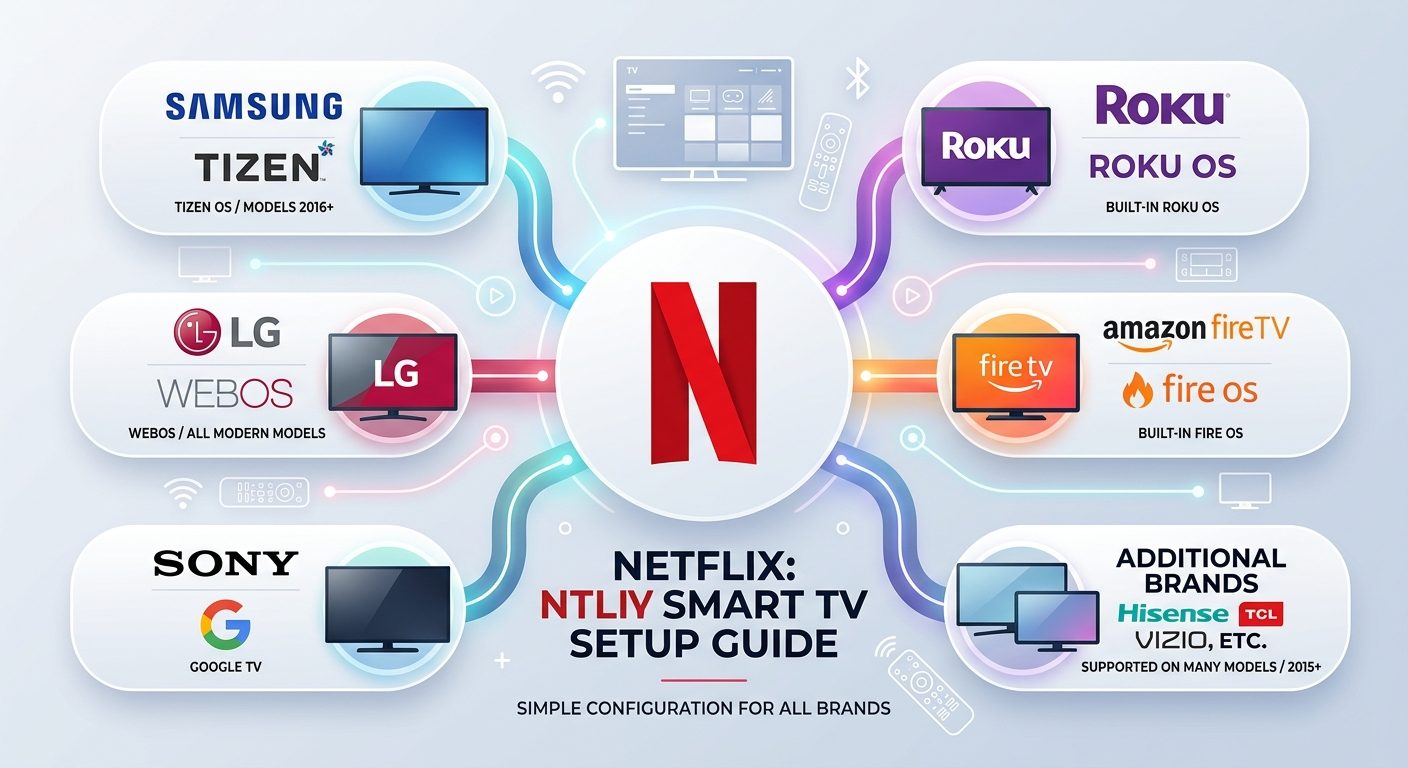
Netflix is one of the most popular streaming services in the world and it works on almost every Smart TV. In this guide we will show you how to configure Netflix on different TV models including Samsung, LG, Sony, Roku and Amazon Fire TV.
Which TV Models Support Netflix?
Netflix is supported on the following Smart TV platforms:
- Samsung – Tizen OS, models from 2016 onwards
- LG – webOS, all modern models
- Sony – Google TV (formerly Android TV)
- Roku TV – built-in Roku OS
- Amazon Fire TV – built-in Fire OS
- Hisense, TCL, Vizio – models from 2015 onwards
Note: If your TV is older than 10 years, Netflix may no longer be supported. In that case you can plug in a Roku Stick or Amazon Fire TV Stick to your HDMI port to get Netflix working again.
How to Configure Netflix on Samsung Smart TV
Follow these steps to set up Netflix on your Samsung Smart TV:
- Press the Home button on your Samsung remote to open Smart Hub.
- Navigate to Apps and use the search icon to find Netflix.
- Select Install if Netflix is not already installed.
- Open Netflix and select Sign In.
- Enter your email address and password using the on-screen keyboard.
- Select your profile or create a new one.
- Go to Settings → Account → Playback Settings and set quality to High for the best picture.
- For HDR picture, go to Settings → Picture → Expert Settings and enable HDR+ Mode.
Tip: If you own a 2024 or 2025 Samsung Neo QLED or OLED TV, you can enable HDR10+ in the Picture settings for an even better Netflix experience.
How to Configure Netflix on LG Smart TV
Follow these steps to set up Netflix on your LG Smart TV running webOS:
- Press the Home button on your LG Magic Remote to open the webOS dashboard.
- Find Netflix on the home row of apps. If it is missing, go to LG Content Store and search for Netflix then install it.
- Open Netflix and sign in with your email and password.
- Set up profiles by going to Netflix → Profile icon → Manage Profiles → Add Profile.
- For the best picture go to Settings → Picture → Picture Mode and select FILMMAKER MODE.
- To remove the soap opera effect go to Settings → Picture → Picture Options → TruMotion and set it to Off.
Tip: FILMMAKER MODE on LG TVs automatically turns off all picture post-processing so you see Netflix content exactly as it was intended.
How to Configure Netflix on Sony Bravia TV
Sony Bravia TVs run Google TV and come with Netflix pre-installed. Follow these steps:
- Press the Home button on your Sony remote to open Google TV.
- Find Netflix in the Apps row or press the dedicated Netflix button on your remote.
- Select Sign In and enter your credentials. Alternatively go to netflix.com/activate on your phone and enter the code shown on screen.
- For the best movie picture go to Settings → Display & Sound → Picture and select Cinema Pro.
- To fix motion blur go to Advanced Settings → Motionflow and set it to Off or Smooth.
- You can also use voice search by holding the microphone button on the remote and saying something like “Play Stranger Things on Netflix”.
How to Configure Netflix on Roku TV
Roku TVs and Roku sticks make it very simple to get Netflix running. Follow these steps:
- From the Roku home screen find the Netflix channel. If it is not there go to Streaming Channels → Search Channels and search for Netflix.
- Select Add Channel and then open Netflix.
- Select Sign In and enter your email and password.
- While Netflix is highlighted on the home screen press the Star (*) button on your Roku remote to access quick settings including subtitles and audio options.
- Inside the Netflix app go to Settings → Data Usage and set it to High or Unlimited for the best quality.
How to Configure Netflix on Amazon Fire TV
Amazon Fire TV has Netflix available right from the home screen. Follow these steps:
- From the Fire TV home screen find the Netflix app. If it is not there go to Apps → Categories or use the search to find and install Netflix.
- Open Netflix and select Sign In with your email and password.
- You can also use Alexa to open Netflix by saying “Alexa, open Netflix” or “Alexa, play action movies on Netflix”.
- Go to Netflix → Settings → Data Usage and set it to High for the best streaming quality.
- Select your profile or create separate profiles for each family member.
Netflix Playback Quality Settings
These settings apply to all TV models and can be changed from your Netflix account online or inside the app:
| Setting | Where to Find It | Recommended Value |
|---|---|---|
| Streaming Quality | Netflix → Account → Playback Settings | High (4K needs Ultra HD plan) |
| Autoplay Next Episode | Netflix → Account → Playback Settings | On or Off (personal preference) |
| Subtitle Language | Netflix → Profile → Language | Your preferred language |
| Maturity Ratings | Netflix → Account → Parental Controls | Set per profile |
| Audio | During playback → Audio & Subtitles | Dolby Atmos if your TV supports it |
How to Set Up Netflix Profiles for Your Family
Netflix allows up to 5 profiles per account. Here is how to set them up:
- Open Netflix and tap the Profile icon at the top right of the screen.
- Select Manage Profiles.
- Tap Add Profile and enter a name and choose an avatar.
- Set the maturity rating for each profile — Kids, Teen or Adult.
- For adult profiles enable a Profile PIN under Account → Profile & Parental Controls.
- Each profile has its own language, subtitle and autoplay settings which can be changed independently.
Troubleshooting Netflix on Smart TVs
If you are having issues with Netflix on your TV here are the most common fixes:
- Netflix is buffering or showing low quality – Check your internet speed. Netflix needs at least 25 Mbps for 4K. Try using a wired Ethernet connection instead of Wi-Fi.
- Netflix app will not open – Unplug your TV from the power for 30 seconds then restart the Netflix app.
- Netflix is not in the App Store – Update your TV firmware by going to Settings → Support → Software Update and try again.
- No 4K picture even on a 4K TV – Make sure you are subscribed to the Netflix Ultra HD plan and that your TV supports HDCP 2.2.
- Audio is out of sync – During playback go to Audio and switch to a different audio track then switch back.
- Error code UI-800-3 – Go to Settings → Apps → Netflix → Clear Data and restart the app.
- Cannot log in – Reset your Netflix password at netflix.com from your phone or computer and then try signing in on your TV again.
Conclusion
Setting up Netflix on any Smart TV is straightforward once you know the steps for your specific model. Whether you have a Samsung, LG, Sony, Roku or Amazon Fire TV the process is very similar. The most important things to remember are to set your playback quality to High, set up separate profiles for each family member and enable the correct picture mode on your TV for the best viewing experience.