
How to Configure Microsoft Copilot on Windows 11 (2026 Guide)
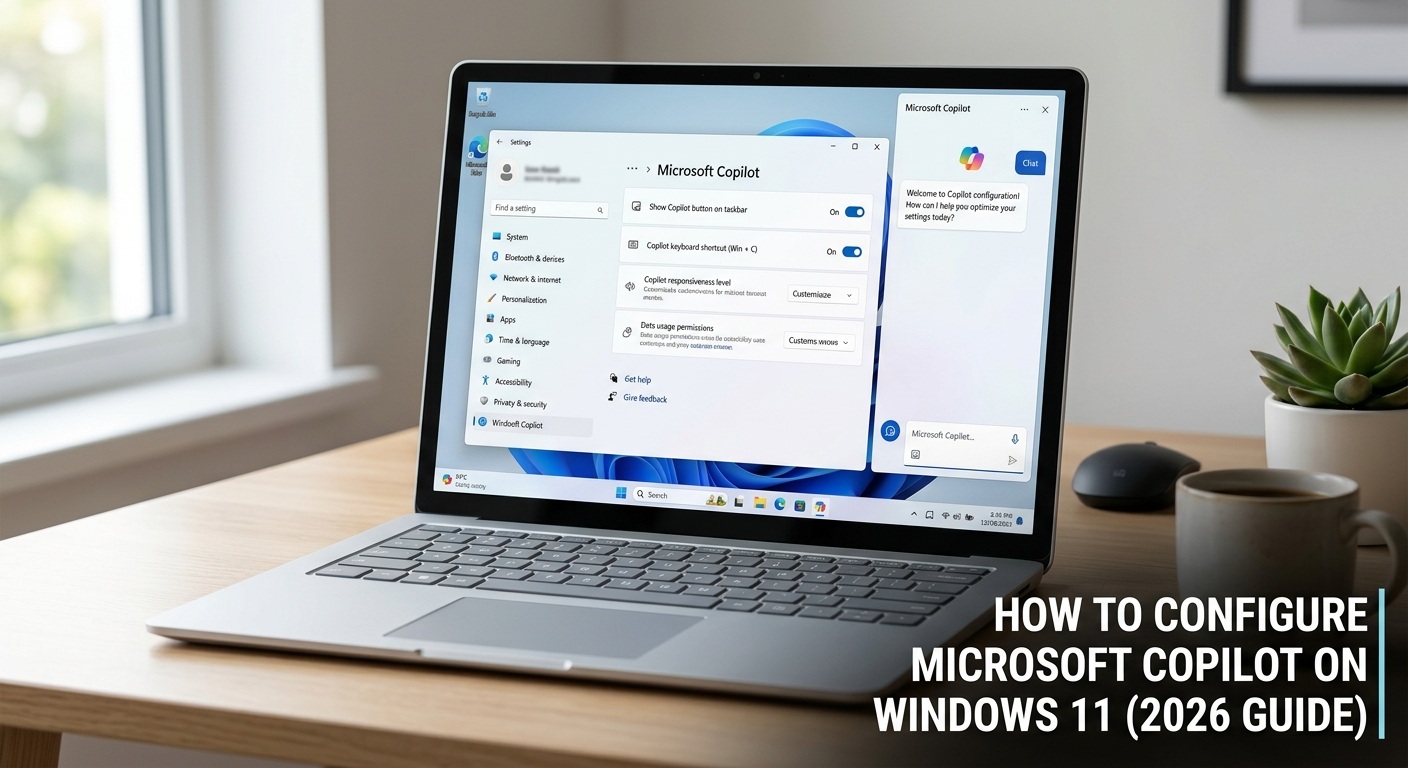
Microsoft Copilot has evolved significantly in 2026. What started as a simple AI sidebar is now a deeply integrated AI assistant built across Windows 11, Microsoft 365, Edge, Teams, Outlook, Excel and more. It is powered by GPT-5.2 and supports voice, vision, file reading and agentic workflows. In this guide we will show you exactly how to configure Copilot on Windows 11 — from the basic setup all the way to Group Policy controls and enterprise management.
What is Microsoft Copilot in 2026?
Microsoft Copilot is an AI assistant powered by OpenAI’s GPT-5.2 model. It is built directly into Windows 11 and the Microsoft 365 suite. Unlike the older Cortana voice assistant, Copilot understands complex multi-step requests, searches the web in real time, reads files on your device, sees your screen through Copilot Vision and can run multi-step agentic workflows without you having to manually complete each task.
As of May 2025, Microsoft replaced the old Copilot in Windows sidebar experience with a more streamlined interaction model. Pressing the Copilot key (or Win + C on keyboards without a Copilot key) now opens a lightweight quick-view prompt box that lets you interact without switching apps. This can be expanded into the full Microsoft 365 Copilot app for more functionality.
There are now two versions of Copilot you need to be aware of:
- Microsoft Copilot (Consumer) – Free version for personal Microsoft accounts. Available at copilot.microsoft.com and as a standalone Windows app. Does not support Microsoft Entra authentication.
- Microsoft 365 Copilot Chat (Commercial) – For work or school Microsoft Entra accounts. Includes Enterprise Data Protection (EDP), meaning your prompts and responses are not used to train AI models and are covered by the Microsoft Data Protection Addendum.
System Requirements for Copilot on Windows 11
Before setting up Copilot make sure your system meets the following requirements:
- Windows 11 Build 22621 or later – Check by going to Settings → System → About. The latest build as of 2026 is 26H2. You need at minimum the October 2024 monthly security update for the new Copilot experience.
- Microsoft 365 Apps Version 2511 or later – Required for the Microsoft 365 Copilot app to auto-install. Version 2511 was released in the Current Channel in December 2025 and the Monthly Enterprise Channel in January 2026.
- Internet connection – Required for all Copilot features including web grounding, file reading and voice chat.
- Microsoft account – Required to access chat history, image generation, voice interactions and cross-device sync.
- RAM – Minimum 4GB. 8GB or more recommended for smooth multitasking.
- NPU (Neural Processing Unit) – Required only for Copilot+ PC exclusive features such as Recall. Standard Copilot features work without an NPU on any Windows 11 device.
Note: The Microsoft 365 Copilot app does not auto-install on devices in the European Economic Area (EEA) due to regulatory requirements. Users in those regions need to install it manually.
How to Install Copilot on Windows 11
On most Windows 11 devices the Copilot app is installed automatically. If it is not installed follow these steps:
- Open the Microsoft Store from the Start menu.
- Search for Microsoft Copilot in the search bar.
- Click Get or Install to download and install the app.
- Once installed the Copilot app will be pinned to your Start menu and optionally your Taskbar.
Alternatively for organisations where the Microsoft Store is disabled, IT admins can download the installer directly from the Microsoft 365 admin center and deploy it manually using the .exe installer or through Microsoft Intune.
How to Open Copilot on Windows 11
There are several ways to open Copilot on Windows 11:
- Copilot key on keyboard – Press the dedicated Copilot hardware key if your keyboard has one. This opens the lightweight quick-view prompt box.
- Win + C shortcut – For keyboards without a Copilot key. Opens the same lightweight quick-view prompt.
- Alt + Spacebar – Opens Copilot instantly via a small prompt window from anywhere in Windows.
- Hey Copilot wake word – Say “Hey Copilot” out loud to open Copilot hands-free. This is an opt-in feature you need to enable in Settings first.
- Taskbar icon – Click the Copilot icon in the Windows taskbar.
- Start menu search – Click the Start button and search for Copilot.
- Microsoft Edge sidebar – Click the Copilot icon in the top right corner of Edge or use the shortcut Ctrl + Shift + .
Tip: You can configure how the keyboard shortcut behaves by going to Account → Settings → Copilot Keyboard Shortcuts inside the Copilot app. You can set the key to open the quick-view prompt or the full application.
How to Enable or Disable Copilot in Taskbar
To show or hide the Copilot icon from your taskbar:
- Press Win + I to open Settings.
- Go to Personalization → Taskbar.
- Under Taskbar items find Copilot and toggle it On or Off.
Note: Hiding the taskbar icon does not disable Copilot. You can still open it using Win + C or Alt + Spacebar.
Configuring Copilot Settings
To access Copilot settings open the full Copilot app using Win + C and expand it to full view. Then click the sidebar and select Account → Settings. Here is what you can configure:
- Theme – Choose Light, Dark or System default.
- Copilot Keyboard Shortcuts – Configure whether the Win + C key and the hardware Copilot key open the quick prompt or the full app.
- File Search and File Read – Toggle whether Copilot can search for and read files on your device including .docx, .xlsx, .pptx, .txt, .pdf and .json files. You can restrict or allow access from Account → Settings → File Search.
- Conversation History – Toggle on or off to save chat history. If signed in your history syncs across all devices.
- Web Search (Web Grounding) – Enable or disable Copilot’s ability to search the internet for current information. Disabling this also disables web grounding for Copilot voice.
- Voice – Enable the Hey Copilot wake word for hands-free access. Hold Alt + Spacebar for 2 seconds to start a voice chat. Voice transcripts are stored and managed like regular Copilot conversations.
- Language – Change the language Copilot uses for responses.
How to Sign In to Copilot
Signing in to Copilot with a Microsoft account unlocks chat history, image creation, voice interactions, longer conversations and cross-device sync. Follow these steps:
- Open Copilot using Win + C and expand to full view.
- Click the Account icon at the bottom of the sidebar.
- Select Sign In.
- Enter your Microsoft account email address and password.
- Complete any additional MFA verification if prompted (authentication app code or email OTP).
- Once signed in your settings and chat history will sync across all devices where you use Copilot.
Important: If you sign in with a Microsoft Entra work or school account you are automatically covered by Enterprise Data Protection (EDP). This means your prompts and responses are not stored beyond your session and are not used to train any AI models. Your data is protected under the Microsoft Data Protection Addendum and Product Terms.
Note: The consumer Microsoft Copilot app does not support Microsoft Entra authentication. If you try to sign in with a work account in the consumer app you will be redirected to the Microsoft 365 Copilot app instead.
How to Use Copilot Vision
Copilot Vision is one of the most powerful features available in 2026. It allows Copilot to see the content inside browser windows or apps open on your screen and answer questions or help you take actions step by step. Follow these steps to use it:
- Open Copilot in full view using Win + C.
- In the Copilot Composer (the input area) click the + button.
- Select Take a Screenshot.
- Use the selection cursor to mark the part of your screen you want to share with Copilot.
- Type your question about the screenshot and press Enter.
Alternatively Copilot Vision can see open browser windows or apps automatically (with your permission) and provide contextual help without you needing to take a screenshot manually. This makes it possible to ask Copilot things like “What is wrong with this code on my screen?” or “Summarize this document I have open”.
Note: Copilot Vision is different from the Recall feature. Recall is a Copilot+ PC exclusive feature that requires an NPU and continuously takes screenshots of your activity. Copilot Vision only captures what you explicitly share or permit.
How to Use Copilot with Files
Copilot can search for and read files stored locally on your device or synced from OneDrive. It supports .docx, .xlsx, .pptx, .txt, .pdf and .json file types. Here is how to use it:
- Open Copilot in full view.
- In the Composer click the + button and select Upload a file or simply describe the file you need.
- Ask Copilot to summarize, analyze or extract information from the file.
- To configure which files Copilot can access go to Account → Settings → File Search and File Read and toggle the permission on or off.
Tip: Copilot does not index your local files by default. File access requires your explicit permission either through the Settings toggle or by manually uploading the file in the Composer.
Choosing the AI Model in Copilot
As of early 2026 Microsoft 365 Copilot Chat includes a model selector that lets you choose how Copilot responds:
- Quick Response (GPT-5.2) – Faster answers for simple questions and tasks. Best for everyday use.
- Think Deeper (GPT-5.2) – More thorough reasoning for complex queries. Best for detailed analysis, coding problems or multi-step tasks. Select this by clicking More in the model selector.
GPT-5.2 delivers improved instruction following, better math and coding performance and clearer explanations compared to previous models.
Configuring Copilot Privacy and Data Settings
If you want to control how Copilot handles your data follow these steps:
- Press Win + I to open Settings.
- Go to Privacy & Security.
- Scroll down and look for Search permissions or Bing Search settings.
- Disable Web Search in Copilot Settings if you do not want Copilot to connect to the internet. Note that disabling optional connected experiences will also disable web grounding for voice chat.
- Turn off Conversation History inside the Copilot app under Account → Settings if you do not want your chats saved.
- For complete audit control commercial users can apply Microsoft Purview policies to manage retention, eDiscovery and auditing of Copilot conversations.
Important: Voice transcripts from Copilot voice chat are stored and managed exactly like regular text conversations. No audio recordings are stored — only text transcripts. Your existing retention and eDiscovery policies automatically apply to these transcripts.
Disabling Copilot Using Group Policy (Windows Pro and Enterprise)
For IT administrators or power users on Windows 11 Pro, Enterprise or Education editions you can disable Copilot more comprehensively using Group Policy. Here is how:
- Press Win + R, type gpedit.msc and press Enter to open the Local Group Policy Editor.
- Navigate to User Configuration → Administrative Templates → Windows Components → Windows Copilot.
- Double-click Turn off Windows Copilot and set it to Enabled.
- Click Apply and OK.
- Open Command Prompt as Administrator and run gpupdate /force or restart the PC for the policy to take effect.
What this does: Sets the official Microsoft policy that disables Copilot for the targeted user. Removes the taskbar icon and blocks the primary launch paths including the Win + C keyboard shortcut on most builds. Note that some app-specific Copilot integrations in Edge or Microsoft 365 apps may not be fully blocked by this policy alone.
For enterprise deployments using Microsoft Intune or MDM (Mobile Device Management) you can push the equivalent CSP (Configuration Service Provider) setting to managed devices at scale. IT admins can also use AppLocker to block the Copilot app from running entirely on managed fleets. Microsoft has also added a policy in early 2026 that allows IT admins to uninstall the Copilot app on managed devices under the following conditions:
- Both Microsoft 365 Copilot and Microsoft Copilot are installed
- The Microsoft Copilot app was not installed by the user
- The Microsoft Copilot app was not launched in the last 28 days
Configuring Copilot Agentic Features
In 2025 Microsoft introduced AI Agents in Copilot — these are autonomous multi-step workflows that Copilot can run on your behalf without you having to complete each step manually. Two agents are currently available:
- Researcher Agent – Performs deep multi-step research tasks and synthesizes information from multiple sources.
- Analyst Agent – Runs data analysis workflows directly inside Microsoft 365 apps like Excel.
For enterprise environments IT admins can manage agentic capabilities using Intune, Microsoft Entra and Group Policy. This includes:
- Enabling or disabling agent connectors and workspaces
- Setting minimum security policies for agent connectors
- Deploying agent connectors with MSIX packages
- Reviewing event logs for visibility into agent activity
Copilot Keyboard Shortcuts
Here is a complete reference of keyboard shortcuts for Copilot on Windows 11:
| Shortcut | Action |
|---|---|
| Copilot key (hardware) | Open Copilot quick-view prompt |
| Win + C | Open Copilot quick-view prompt (keyboards without Copilot key) |
| Alt + Spacebar | Open Copilot quick prompt instantly from anywhere |
| Alt + Spacebar (hold 2 seconds) | Start a Copilot Voice chat hands-free |
| Narrator key + Ctrl + D | Describe the focused image on screen using Copilot |
| Narrator key + Ctrl + S | Describe the full screen using Copilot |
| Ctrl + Shift + . (in Edge) | Open Copilot in the Edge sidebar |
| Escape | Close the Copilot prompt or window |
Copilot Free vs Copilot Pro
Here is a comparison of what you get with the free and paid versions of Copilot:
| Feature | Copilot Free | Copilot Pro ($20/month) |
|---|---|---|
| AI chat (GPT-5.2) | ✅ Yes | ✅ Yes (priority access) |
| Web search / grounding | ✅ Yes | ✅ Yes |
| Voice chat | ✅ Yes | ✅ Yes |
| Image generation | Limited | ✅ Higher limits |
| File reading (.docx, .pdf etc) | ✅ Yes | ✅ Yes |
| Copilot Vision | ✅ Yes | ✅ Yes |
| Microsoft 365 app integration | ❌ No | ✅ Yes (Word, Excel, Outlook etc) |
| Think Deeper (advanced reasoning) | Limited | ✅ Full access |
| Response speed during peak hours | Standard | Priority |
| Plugin and connector support | ❌ No | ✅ Yes |
To subscribe to Copilot Pro go to copilot.microsoft.com and click Upgrade to Pro. You will need a valid credit card. The subscription can be cancelled at any time.
Troubleshooting Copilot on Windows 11
If you are having issues with Copilot here are the most common fixes:
- Copilot app is not installed: Make sure you are on Microsoft 365 Apps Version 2511 or later. Check by opening any Office app, going to File → Account and checking the version number. Update if needed.
- Win + C does not open Copilot: Go to Settings → Personalization → Taskbar and make sure the Copilot toggle is On. Also check Group Policy (gpedit.msc) to make sure Turn off Windows Copilot is not set to Enabled.
- Copilot is not responding or loading slowly: Check your internet connection. Copilot requires a stable broadband connection for all features including chat, voice and web search.
- Cannot sign in with work account: The consumer Copilot app does not support Microsoft Entra accounts. Use the Microsoft 365 Copilot app instead, which is available from the Microsoft 365 admin center.
- Hey Copilot wake word not working: Make sure the wake word feature is enabled. Go to Account → Settings in the Copilot app and turn on the Hey Copilot wake word. Your PC must be unlocked for this to work.
- File search not finding documents: Go to Account → Settings → File Search and File Read and make sure the toggle is turned On. Note that Copilot only accesses files you explicitly permit it to read.
- Copilot Vision not available: Make sure you are using the full Copilot app view (not the quick-view prompt). Copilot Vision requires the Composer to be fully expanded.
- Copilot was removed after a Windows update: Microsoft’s auto-uninstall policy may have removed it if it was not used in the last 28 days. Reinstall from the Microsoft Store or via the Microsoft 365 admin center.
Conclusion
Microsoft Copilot in 2026 is far more capable than the basic AI sidebar it started as. With GPT-5.2 powering it, support for voice, file reading, screen vision, agentic workflows and deep Microsoft 365 integration it is now a serious productivity tool for both home users and enterprises. The free version covers most everyday needs and Copilot Pro is worth considering if you use Microsoft 365 apps heavily.
For IT admins the Group Policy, Intune CSP and AppLocker controls give you full control over how Copilot is deployed and used across your organisation. Start with the basic setup outlined in this guide and work your way up to the advanced settings as you get comfortable with the tool.
If you have any questions or run into any issues feel free to leave a comment below.